

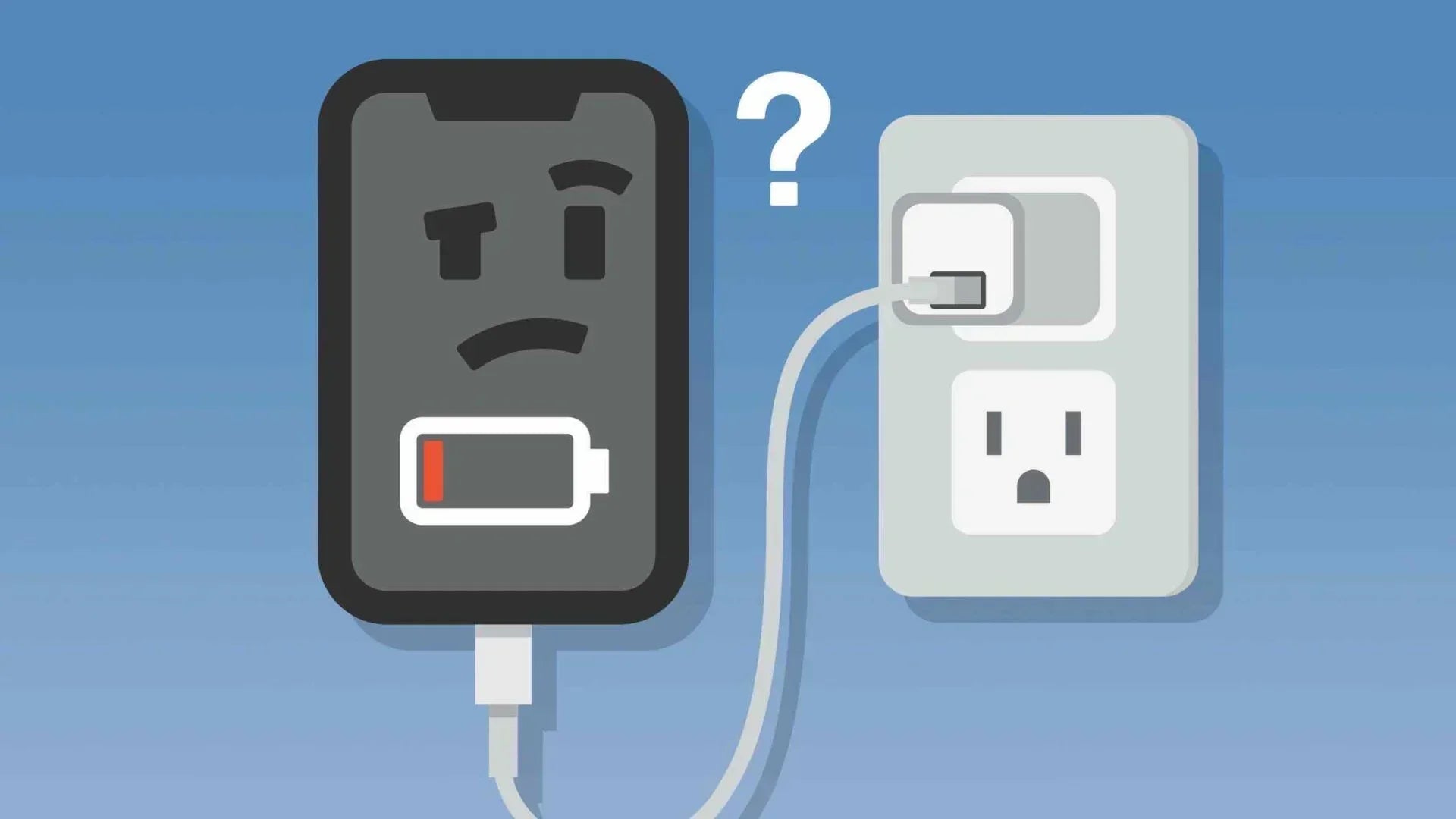
Few things are more frustrating than plugging in your phone and realizing that the battery percentage is not moving. The good news is that many charging problems are caused by simple issues such as a damaged cable, a dirty charging port, or a temporary software glitch.
In this guide, we will walk through seven practical tips to help you identify and fix common charging issues. If none of these solutions work, or if you notice signs of physical damage, overheating, or a swollen battery, it may be time to seek professional repair or contact the device manufacturer.
Tip #1: Check Your Charger and Charging Cable
Before assuming there is something wrong with your phone, check the charger and charging cable first. These accessories experience daily wear and tear, and even minor damage can interrupt the flow of power to your device. A cable may look perfectly fine on the outside while having broken wires inside, and a faulty adapter may not deliver enough power to start charging.
Common causes include:
- Damaged charging cable
- Faulty power adapter
- Loose cable connection
- Incompatible or low-quality charger
To fix the issue, try charging your phone with a different cable and adapter that you know are working properly. Also, make sure all connections are firmly plugged in and inspect the cable for signs of fraying, bending, or exposed wires. If the phone begins charging normally with another charger, you have identified the source of the problem and can replace the defective accessory.

Tip #2: Clean Your Phone's Charging Port
Your phone's charging port is exposed whenever a cable is unplugged, making it easy for dust, lint, and other debris to accumulate over time. Even a small amount of buildup can prevent the charging cable from making proper contact with the connector inside the port, causing intermittent charging or preventing the phone from charging altogether.
Common causes include:
- Dust buildup inside the charging port
- Pocket lint blocking the connector
- Dirt or debris preventing proper contact
- Corrosion caused by moisture exposure
To fix the issue, carefully inspect the charging port under good lighting and remove any visible debris using a soft brush, wooden toothpick, or a can of compressed air. Avoid using metal objects, as they can damage the connector pins inside the port. Once the obstruction is removed, the charging cable should fit more securely and establish a stable connection, allowing your phone to charge normally again.
Tip #3: Restart Your Phone and Close Problematic Apps
Not every charging problem is caused by hardware. In some cases, software glitches or malfunctioning apps can interfere with the charging process. Certain apps may continue running in the background and consume large amounts of power, making it seem like your phone is not charging even when it is connected to a power source.
Common causes include:
- Temporary software glitches
- Apps consuming excessive power in the background
- Frozen system processes
- Battery management errors
To fix the issue, start by closing unnecessary apps and then restart your phone. A reboot refreshes the operating system, clears temporary errors, and stops any apps that may be draining the battery excessively. If the charging issue disappears after restarting, the problem was likely software-related rather than a fault with the charger, battery, or charging port.
Tip #4: Check for Water, Moisture, or Temperature Warnings
Modern smartphones are designed to protect themselves from damage caused by water and extreme temperatures. If moisture is detected in the charging port or the device becomes too hot or too cold, the phone may temporarily disable charging to prevent short circuits, battery damage, or other hardware issues.
Common causes include:
- Moisture inside the charging port
- Exposure to rain or high humidity
- Charging in extremely hot conditions
- Charging in very cold environments
To fix the issue, disconnect the charger and allow the phone to dry completely if you suspect moisture exposure. If the device displays a moisture warning, avoid attempting to force a charge until the alert disappears. For temperature-related issues, move the phone to a moderate environment and allow it to return to its normal operating temperature before charging again. Once the phone detects safe conditions, charging should resume normally.

Tip #5: Try a Different Power Source
Sometimes the charger and cable are working perfectly, but the power source itself is the problem. A faulty wall outlet, underpowered USB port, or malfunctioning power bank may not deliver enough electricity to charge your phone properly. This can make it appear as though the phone has stopped charging when the real issue is the source of power.
Common causes include:
- Faulty wall outlet
- Underpowered USB port
- Defective power bank
- Loose power connections
- Power fluctuations from the source
To fix the issue, connect your phone to a different power source and see if charging resumes. Try a wall outlet instead of a computer USB port, or test another outlet if one is available. If you use a power bank, make sure it has sufficient battery capacity and is functioning correctly. Switching to a reliable power source helps determine whether the charging problem is related to the phone or simply a lack of stable power delivery.
Tip #6: Update Your Software and Check Battery Health
If your charger, cable, charging port, and power source all seem to be working properly, the problem may be related to your phone's software or battery condition. Outdated software can sometimes cause charging bugs, while an aging battery may struggle to accept and hold a charge efficiently. Since smartphone batteries naturally degrade over time, charging issues often become more common as a device gets older.
Common causes include:
- Outdated operating system
- Software bugs affecting charging performance
- Incorrect battery management settings
- Degraded battery health
- Aging battery nearing the end of its lifespan
To fix the issue, check for any available software updates and install them if needed, as manufacturers often release updates that address battery and charging-related issues. You should also review your phone's battery health information, if available, to determine whether the battery has significantly degraded. If the battery health is poor or the device is several years old, replacing the battery may restore normal charging performance and extend the phone's usable life.
Tip #7: Seek Professional Repair
If you have tried all the previous solutions and your phone still will not charge, the issue may be related to a more serious hardware problem. While many charging issues can be fixed at home, problems involving internal components usually require professional inspection and repair.
If your phone has a damaged charging port, a faulty charging circuit, a swollen battery, or other signs of hardware failure, it is best to contact an authorized repair center or the device manufacturer for assistance. You can also look for additional troubleshooting tips online if you are unsure about the cause, but avoid attempting complex repairs yourself, as this may cause further damage to your phone.
Conclusion
A phone that will not charge can be caused by many different issues, from a damaged charging cable and dirty charging port to software problems or battery degradation. In most cases, simple troubleshooting steps such as checking your accessories, cleaning the charging port, restarting your device, and testing a different power source can help restore normal charging. However, if your phone still refuses to charge after trying these fixes, professional repair may be the best option to identify and solve the underlying hardware problem.
FAQs
What tools are safe to clean the port?
The safest tools for cleaning your phone's charging port are a soft brush, compressed air, or a wooden toothpick. These tools can help remove dust and lint without damaging the delicate connector pins inside the port. Avoid using metal objects such as needles, paper clips, or tweezers, as they can scratch the port or cause internal damage.
Why is my phone charging slowly?
Your phone may charge slowly because of a damaged cable, a weak power adapter, background apps consuming power, an aging battery, or using the device heavily while charging. Slow charging can also happen when the phone becomes too hot, as many devices automatically reduce charging speed to protect the battery.
How do I clean my phone charging port?
To clean your phone's charging port, first turn off the device and inspect the port under good lighting. Use a soft brush or wooden toothpick to gently remove visible dust and lint, or use compressed air to clear loose debris. Avoid applying too much force and do not insert sharp metal objects into the port. After cleaning, reconnect the charging cable to check whether the connection improves.
Is it expensive to change a phone battery?
The cost of replacing a phone battery depends on the device model and repair provider. For many smartphones, a battery replacement usually costs around $50 to $150, while some premium devices may cost more due to higher repair complexity or official service fees. Replacing the battery is often much cheaper than buying a new phone, especially if the device is otherwise working well.

Share:
Factors to Consider When Buying a Projector Phone
What is an eSIM card: A Complete Guide